Obsidian is a software application to write notes and gather / structure knowledge in a non-linear way. The notes are saved as local markdown files that can be internally linked and visualized.
Resources
- Getting Started (Download & Install)
- Basic formatting Syntax
- Core Plugins
- Obsidian Digital Garden
- Smart Connections (Chatbot)
Shortcuts
- Use Ctrl + P to enter commands, e.g., Publish Multiple Notes, Open Weekly Note, etc.
- Ctrl + O to look up or create notes
- Higlight text + 2x left bracket to create a new link
- Highlight text and right-click + Extract current selection… to make a new note out of the text
Tasks
- Task plugin, see Task User Guide and Task User Guide: Recurring Tasks.
- Kanban plugin, see Obsidian Kanban
- Trello plugin, see Obsidian Trello
Weekly Notes
- Create a note that can be used as a template for weekly notes.
- Install the community plugin Periodic Notes (and optionally the Calendar and Task plugins).
- Open the settings of the Periodic Notes.
- In the field Format, enter
[Journal]/YYYY/YYYY-[W]ww. This saves new weekly notes in a folder “Journal”. - In the field Weekly Note Template, enter the name of a template file, e.g.
templates/weekly.
Variables (tags) in weekly notes:
| Tag | Description |
|---|---|
title | Works the same as the daily note {{title}}. It will insert the title of the note |
date, time | Works the same as the daily note {{date}} and {{time}}. It will insert the date and time of the first day of the week. Useful for creating a heading (e.g. # {{date:gggg [Week] ww}}). |
sunday, monday, tuesday, wednesday, thursday, friday, saturday, sunday | Because weekly tags refer to main days, you can refer to individual days like this {{sunday:YYYY-MM-DD}} to automatically insert the date for that particular day. Note, you must specify the date format! |
Tip
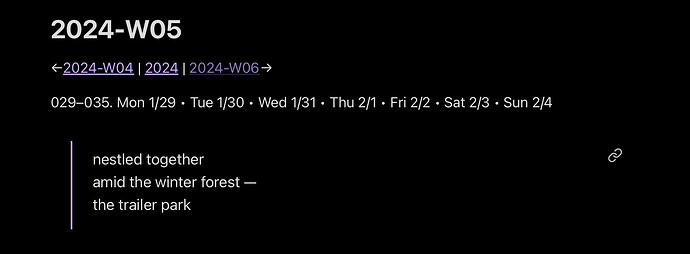
Add the following content at the beginning of the weekly template to create a header:
←[[{{date-1w:GGGG-[W]WW}}]] | [[{{date:GGGG}}]] | [[{{date+1w:GGGG-[W]WW}}]]→
Publish Notes
Instead of the regular Publish plugin, follow the tutorial below to publish your Osidian notes using the free Digital Garden plugin.
Tutorial: https://www.youtube.com/watch?v=eULVrTjT11w
Once the Digital Garden is set up, make sure to add the property dg-publish to the notes you want to publish and set the property to true.
Tip
To share single notes, you can use the Share Note plugin. You can also publish Obsidian notes using Static Site Generators, especially Docusaurus in combination with the Obsidiosaurus tool.
What I use it for
I use Obsidian to take notes (about general topics I’m interested in as well as for personal projects) and cultivate a Digital Garden, see https://garden-ruby-sigma.vercel.app/.