Microsoft Word is an WYSIWYG editor that is part of the Microsoft Office Suite. While there are other editors that are focused on Documentation and provide more functionalities for technical writing, Word is still a widely used solution for writing documentations.
Building Blocks
One of my favourite features of Word are building blocks. Building blocks are reusable text snippets that you are available across all documents. They can also be made available on a company-wide level.
Company Templates for Building Blocks
Personal building blocks are stored in a template file called Building Blocks.dotx.
The building blocks provided by Microsoft are stored in the file Buildingblocks.dotx.
Both files are located in the following directory:
C:\<name>\AppData\Roaming\Microsoft\Document Building Blocks\1031\<version number of Word>
NOTE
Because these templates are separate from the templates used to create documents, building blocks are available in any document you create. You can also save them in other templates so that they can be restricted to particular documents or distributed to other users.
To make building blocks accessible in the whole company, the following options are available:
- create a new company template and provide the template to all employees in the folder mentioned above. The template is available offline, but is not updated automatically.
- create a new company template on a server and provide a the path to the server in the registry of all employees. The template is only available in the company network.
Follow the steps below to make building block available on a server:
- Save existing building blocks as a DOTX file or create an empty DOTX file.
- Make sure the DOTX file is located on a secured network location that all relevant employees have access to.
- Optional: If not all employees are allowed to edit or create new building blocks, make sure that employees have read-only access.
- Create the following registry entry on the machines of the employees:
HKEY_CURRENT_USER\SOFTWARE\Microsoft\Office\<version number of Word>\Common\GeneralNew string: SharedDocumentParts Value: path to the company template, e.g.,\\Server\Bausteine.
The building blocks inside the template are now available in the Quick Parts menu of Word.
Create New Building Blocks
Follow the steps below to create a new building block:
- Select the text you want to reuse.
- Navigate to the menu Insert > Quick Parts > AutoText > Save Selection to Auto Text Gallery. The window “Create New Building Block” opens.

- In the field Name, enter a name for the building block.
- In the drop-down list Category, select an existing category for the building block or create a new category. Using categories is helpful for managing a large amount of building blocks.
- Optional: In the field Description, add additional information that helps users identify when to use the building block.
- In the drop-down list Save in, select the company template file.
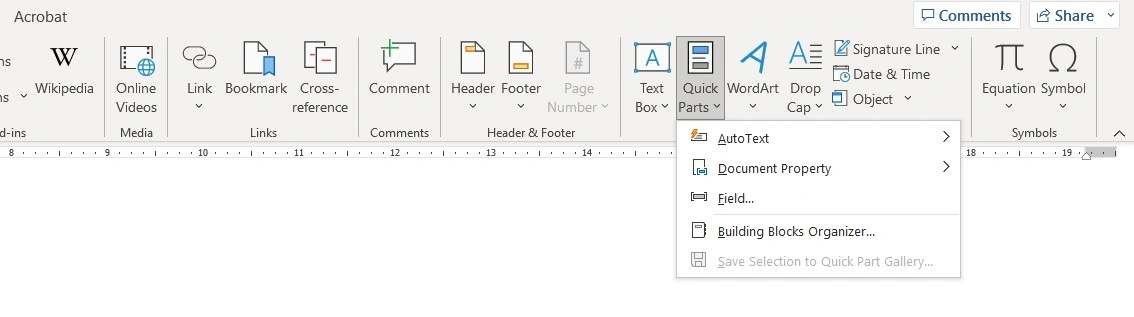
The building blocks are now available in the Quick Parts menu of Word. To edit or delete the building block, use the Building Blocks Organizer in the menu Insert > Quick Parts > Building Blocks Organizer.
NOTE
AutoText and Quick Parts are the names of different galleries. You can use both.
- AutoText: Insert > Quick Parts > AutoText > Save Selection to Auto Text Gallery
- Quick Parts: Insert > Quick Parts > Save Selection to Quick Part Gallery
Insert Building Blocks
Navgate to the menu Insert > Quick Parts > AutoText and select the building block you want to insert into your document.
Resources
What I use it for
I used to be in charge of creating and maintaining building blocks for software documentation at a company I worked for in the past.
About the products: We offered software solutions for smart cameras. The software would consist of multiple modules that are executed in a defined order. Each module contained one or more standard functions. Using this modular approach, the software was easily taylored to suit the individual requirements of our customers.
About the documentation: The documentation was written in Word and exported as a .pdf file and delivered to the customer together with the software. The engineers and technicians would use a template file that already contained the documentation of the basic framework of the software. All that was left to do, was to write the introduction section that contains the customer scenario and to document the modules used to realize the customer scenario in the correct order. The latter part is where I introduced Building Blocks to our team.
The modular principle of the software products was perfect for building blocks. I wrote a building block for each module that could be inserted in the documentation by all technicians and engineers in our team. This increased the efficiency (and grammar…) of our software documentation significantly.